Basic Visual Query Builder
The visual mode is designed to be intuitive: simply drag a pill (Entity or Relationship) from the Schema panel to the Query Builder. When you drop it, the query is automatically executed.
You can extend the query by connecting additional pills dragged from the Schema panel, or by clicking and dragging from the handles of pills already placed in the Query Builder.
Under the hood, these visual pills and their connections are translated into Cypher queries and executed on the database.
From the Schema panel, you can drag:
Entity Pill
Represents an entity in the database (similar to a table with attributes).
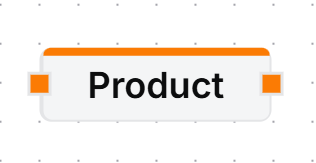
Relationship Pill
Represents a connection between two entities and may also have attributes.
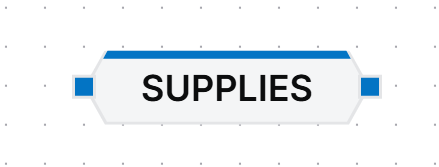
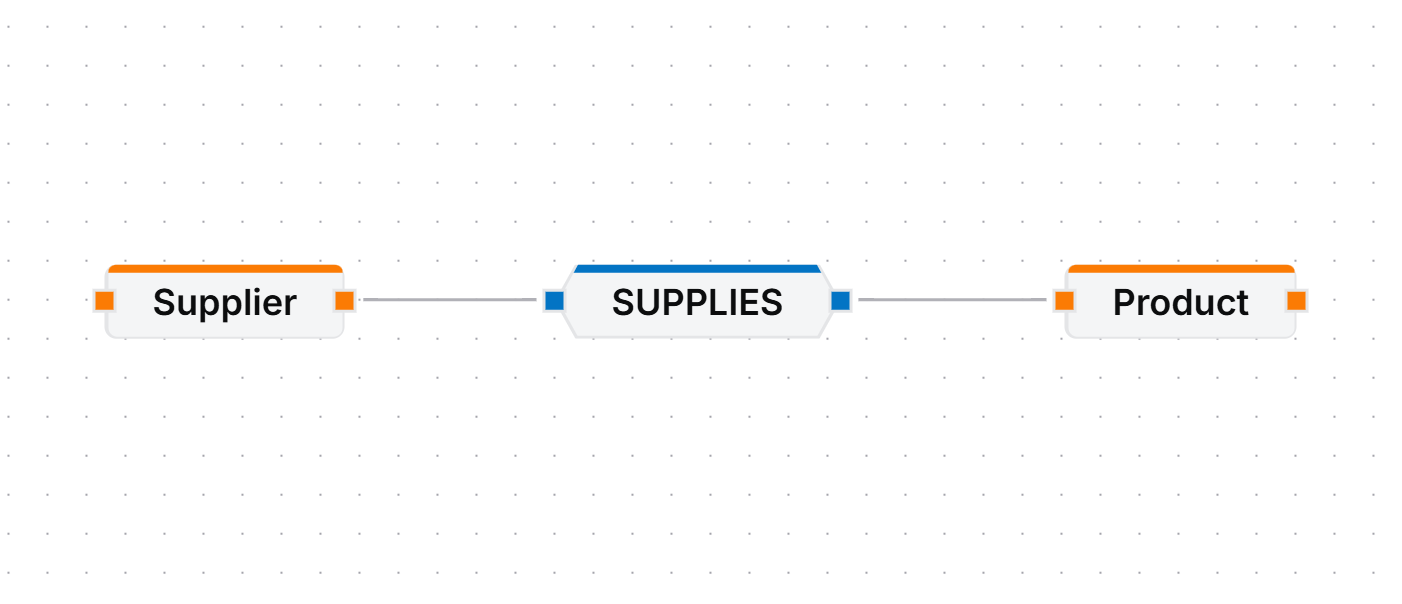
By connecting combinations of Entities and Relationships, you can build queries that express questions. For example, the image below shows a Supplier entity connected to a Product entity through a Supplies relationship. This translates to:
Find all suppliers and the products they supply.
Filtering
In addition to Entities and Relationships, you can filter data using the third type of pill: the Logic Pill.
To apply a filter:
- Right-click on an Entity or Relationship pill.
- From the context menu, hover over Add/Remove Attribute.
- Select one of the available attributes.
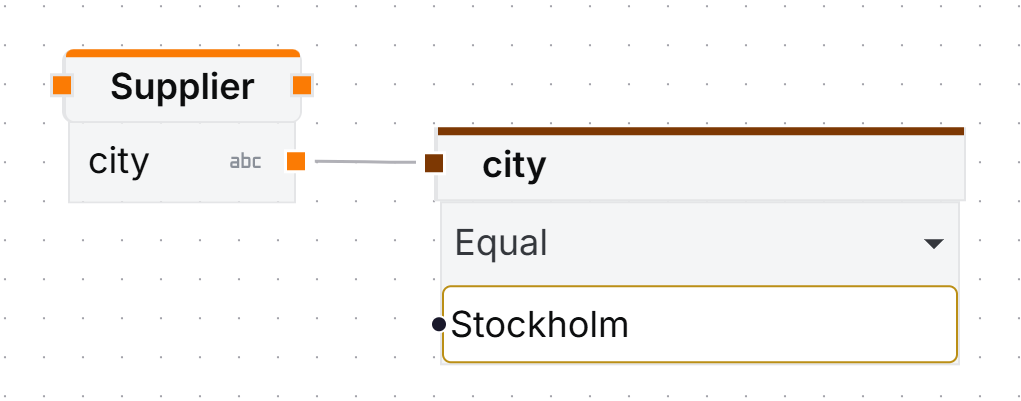
- Click and drag from the attribute’s handle to open the logic menu.
- Choose the Logic Pill you want to apply.
Logic Pill
Represents logical operations, filters, functions, and aggregations applied to attributes.
Supported Operations
Currently, the following operations are supported through Logic Pills:
- Filtering: Compares values and returns a boolean result.
Example: Return suppliers that are located in Stockholm. - Functions: Transforms attributes and returns a derived value. These typically require a filtering pill afterward.
Example: Divide the Price attribute by two and return values greater than X. - Aggregations: Aggregates multiple values into a single result.
- Standalone: Get the supplier with the maximum Price attribute.
- Connected: Get the maximum value from the Price attribute and use it in another condition.
Data Types and Operations
| Data Type | Filters | Functions | Aggregations |
|---|---|---|---|
| Number | EQUAL, NOT_EQUAL, GREATER_THAN, LESS_THAN, GREATER_THAN_EQUAL, LESS_THAN_EQUAL | ADD, SUBTRACT, MULTIPLY, DIVIDE | AVG, COUNT, MAX, MEDIAN, MIN, SUM |
| String | EQUAL, NOT_EQUAL, LIKE, NOT_LIKE, IN, NOT_IN, EMPTY, NOT_EMPTY | LOWER, UPPER, LENGTH | ❌ |
| Boolean | EQUAL, NOT_EQUAL | ❌ | ❌ |
| DateTime | EQUAL, NOT_EQUAL, BEFORE, BEFORE_EQUAL, AFTER, AFTER_EQUAL | YEAR, MONTH, DAY, HOUR, MINUTE, SECOND, DAY_OF_WEEK, DIFFERENCE | ❌ |
| Duration | GREATER_THAN, LESS_THAN, GREATER_THAN_EQUAL, LESS_THAN_EQUAL | ❌ | ❌ |
| Logic | AND, OR, NOT | ❌ | ❌ |
Logic Pills can also be composed and accept inputs from different Nodes and Relationships.
Composition
Logic Pills can be chained together to express more complex conditions.
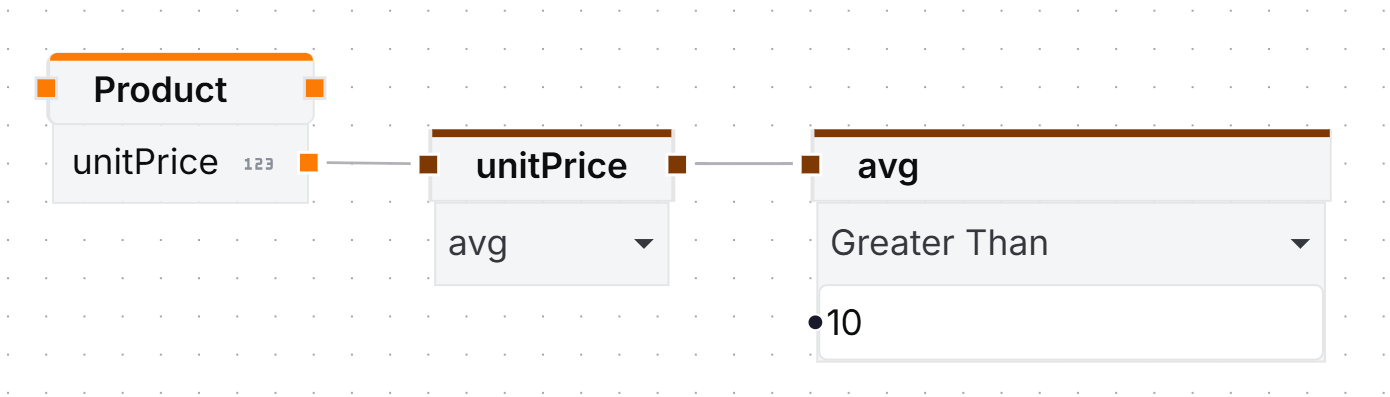
Pill Inputs
Inputs can be fixed values or attributes from Nodes and Relationships.
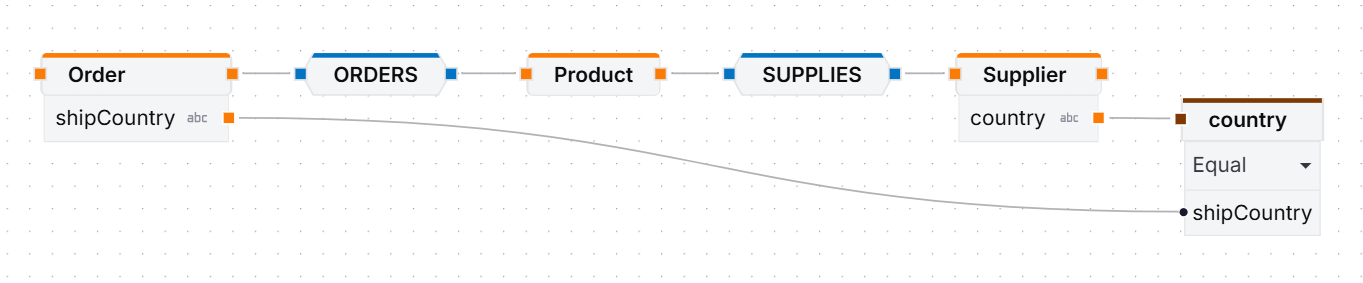
Query Paths
A query path is an isolated sequence of Entity and Relationship pills. Two important concepts apply to query paths:
Direct and Indirect Paths
Direct paths consist of a Entity pill connected through a specific Relationship pill to another Entity pill. Indirect paths occur when one Entity pill is connected directly to another Entity pill, automatically using all relationships between them.
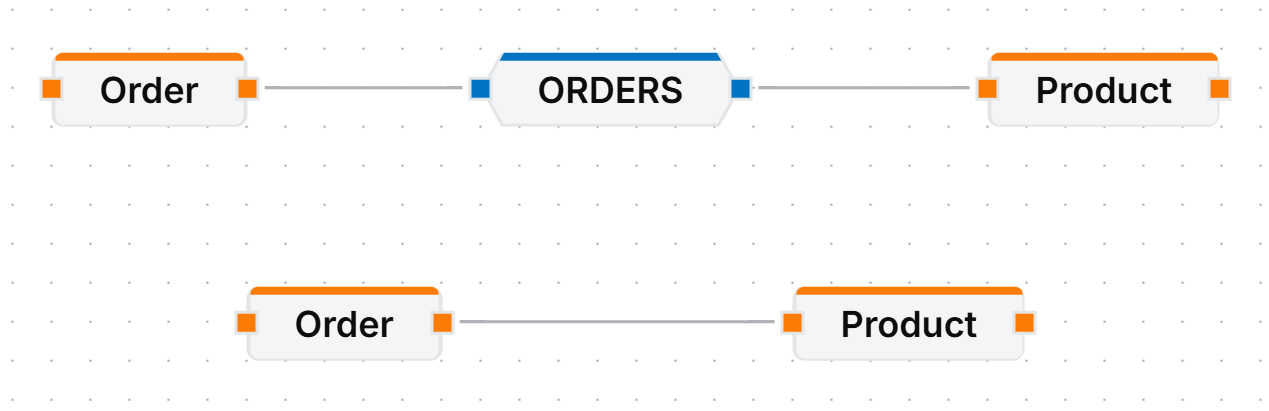
Ignore
Ignores intermediate entities by converting the connection into a direct link between the present entities.

Optional Relationship
Converts the connection into an optional link, returning results even when no relationship exists between the selected nodes

With these concepts, you can compose powerful visual queries and explore your database with ease.